
Wi-Fi 7 arrived as businesses were asking more of their wireless networks. IEEE 802.11be expanded what wireless networks could deliver through wider channels, higher-order modulation, and Multi-Link Operation. The next-generation Wi-Fi 8 standard will place "Ultra-High Reliability" (UHR) at its core, aiming to address complex scenarios such as network congestion, weak signals, or moving devices . For IT teams planning an upgrade, the decision starts with three questions. Where does the current network struggle, which improvements can users benefit from today, and can the wired infrastructure support the next deployment
This article compares the key differences between Wi-Fi 7 and Wi-Fi 8, and helps you address the three deployment issues mentioned above.
Wi-Fi 7 vs. Wi-Fi 8 Explained
The following is a comparison of the key differences between Wi-Fi 7 and Wi-Fi 8:
| Comparison | Wi-Fi 7 | Wi-Fi 8 |
| IEEE standard | IEEE 802.11be-2024 has been published. | IEEE P802.11bn is still in development as a draft standard. |
| Design goals | Extremely High Throughput (EHT), with better multi-link performance and lower latency. | Ultra High Reliability (UHR) under congestion, interference, mobility, and weak signals. |
| Max Speed | 46 Gbps | Theoretically 46 Gbps |
| Frequency bands | 2.4, 5, and 6 GHz, subject to device support and local regulations. | The current draft retains the 2.4, 5, and 6 GHz bands. |
| Channel width | Up to 320 MHz in 6 GHz, where regulations and devices permit. | The draft retains up to 320 MHz and explores more flexible use of channel bandwidth. |
| Multi-Link Operation (MLO) | Compatible APs and clients can establish multiple links. Behavior varies by device. | Retains MLO and advances coordination across multiple APs. |
| Roaming | 802.11k/v/r can improve roaming, depending on client support and configuration. | The draft explores mobility domains to reduce service interruptions during AP handoffs. |
| Reliability | MLO adds transmission opportunities and can improve performance under some loads. | Targets tail latency under load, packet loss during roaming, and weak-signal performance. |
| Device availability | Certification is available. Enterprise APs, clients, and home routers are on the market. | Prototypes, chipsets, and some consumer preorders exist. Check enterprise readiness by model. |
Our sources are from the technical comparison includinge IEEE, Qualcomm, and the Wireless Broadband Alliance (WBA).
What It Means for Your Network
Choose compatible equipment: Use published specs and certification to shortlist Wi-Fi 7 devices. For early Wi-Fi 8 products, confirm supported features, firmware, interoperability, and availability by model.
Plan for coverage and capacity: Check local 6 GHz rules and confirm that access points and clients support the intended bands and MLO links. In dense deployments, test 40 and 80 MHz channels before moving to wider channels.
Measure performance where users feel it: Compare file transfer speeds, peak-hour latency, packet loss, and app interruptions during roaming. Use the same devices, routes, and traffic loads before and after an upgrade, especially in weak-signal areas.
What Do These Differences Mean in Real Networks?
Offices and meeting rooms
An office can pass a morning speed test and still struggle when several rooms start video calls at once. To find the bottleneck, measure round-trip latency and packet loss from a wireless client to a wired test host on the local network. At the same time, record the meeting platform’s jitter and packet loss statistics. Compare those results with a wired client on the same call. If both see the same disruption, investigate the shared network path or internet connection. If the problem is concentrated on wireless clients, inspect channel utilization and retransmissions on the serving APs.
Use 95th-percentile latency (P95) to capture delays that an average can hide. A P95 of 80 ms means 95% of successful latency measurements were 80 ms or lower. A dropped probe may produce no latency reading, so track packet loss separately and check whether losses arrive in bursts that coincide with audio gaps or frozen video.
If the wireless channel is busy, test changes to channel width, channel assignment, or AP placement. Then pilot a Wi-Fi 7 access point in one problem area. Use the same clients and a similar meeting load to compare P95 latency, packet loss, and call interruptions with MLO enabled and disabled where the equipment permits.
Warehouses and logistics facilities
A scanner that stalls as a worker moves between aisles may be experiencing a roaming interruption. A scanner that repeatedly fails to upload from a fixed location at the end of a rack may have a weak uplink. The scanner can still receive the AP’s signal while its own transmissions struggle to reach the AP through shelving or inventory.
Walk the actual picking route with production scanners during a representative shift. Record the time between the last successful application transaction before a handoff and the first successful one afterward. Log scan submission success, wireless retries, and signal strength and signal-to-noise ratio near handoff points. When assessing Wi-Fi 7 range, check whether workers can reliably submit scans from the far end of an aisle under normal operating conditions.
If interruptions cluster around handoffs, verify which 802.11k/v/r capabilities the scanners support and test the roaming configuration. If retries persist while the scanner is stationary, assess AP placement, antenna orientation, and coverage overlap. Repeat the same route after each change so you can see which adjustment helped.
Campuses, venues, and public spaces
A lecture hall may perform well during class while the corridor outside struggles as students leave. A similar pattern occurs at exhibition entrances and venue exits. Record the number of active clients per AP, association success, channel utilization, retransmission rate, and P95 latency during the busiest period. Map the results to entrances, corridors, and other areas where crowds move between AP coverage zones.
Test channel reuse before adding APs or widening channels. For example, compare a 40 MHz plan with an 80 MHz plan at a similar client density. If a temporary venue uses Wi-Fi 7 mesh, measure the wireless backhaul separately while the venue is busy. For permanent high-density areas, an Ethernet backhaul test can show whether the mesh link is limiting capacity. The same measurements can later show whether Wi-Fi 8 multi-AP coordination improves performance in overlapping coverage areas.
When Will Wi-Fi 8 Be Available?
IEEE draft and approval: The P802.11bn D2.0 working-group ballot closed in September 2026. In November, the task group continued resolving comments and set a January 2027 target for delivering D2.3. The published IEEE roadmap projects final approval in May 2028, subject to further review.
Prototypes and product availability: ASUS demonstrated the ROG NeoCore concept router, and Broadcom announced an enterprise AP platform with samples available by inquiry. TP-Link announced Archer 8 Ultra consumer router preorders in selected markets begined on September 30, 2026. Delivery dates vary by product and region.
Certification and procurement: Qualcomm reports that Wi-Fi Alliance is preparing a certification program. As of the verification date, a formal launch date could not be confirmed. Enterprise buyers should verify certification, client interoperability, firmware support, and local availability for the models they plan to deploy.
Should You Upgrade to Wi-Fi 7 or Wait for Wi-Fi 8?
Your current Wi-Fi is the bottleneck
Evaluate Wi-Fi 7 now. Start in a zone where problems recur and conditions are easy to reproduce. A small office may be able to pilot a Wi-Fi 7 router, while a managed enterprise network should test a Wi-Fi 7 AP with its existing switching and management platform. Include both current clients and compatible Wi-Fi 7 devices. This shows which benefits existing users can expect and which depend on a client refresh. Agree on a business outcome before the pilot, such as fewer failed scan submissions or fewer interrupted calls during peak hours.
Wi-Fi 6 or Wi-Fi 6E is meeting business needs
Plan around the equipment lifecycle. If current APs handle peak demand and critical applications meet their performance targets, align the next upgrade with a leasehold renovation, an AP support milestone, or a scheduled client refresh. Keep a baseline for the busiest areas. If meeting concurrency rises, a new application depends on roaming, or a floor is reconfigured, you can use that baseline to decide whether to bring the upgrade forward.
You already run Wi-Fi 7
Verify coverage, roaming, and backhaul first. For complaints tied to a room or aisle, check uplink and downlink coverage with the affected client. For interruptions while moving, measure the application handoff. If performance drops when many users upload at once, inspect AP Ethernet ports, switch uplinks, and any wireless mesh backhaul. The findings can show whether changes to AP placement, channel reuse, or switch capacity will address the problem before your next hardware refresh.
You are planning a high-density redesign
Leave time for a Wi-Fi 8 pilot. Continue planning AP locations, cable routes, and switch capacity while keeping a trial window before the bulk order. Pick a zone where the site can reproduce its hardest conditions, such as overlapping coverage near an event entrance or repeated scanner handoffs at a warehouse staging area. Compare the candidate equipment with the existing network under similar load. Use the results, together with delivery commitments and interoperability checks, to decide whether the pilot should expand.
How to Prepare Your Wired Network for Either Upgrade
Size AP uplinks and switch capacity together
For enterprise IT teams and cabling contractors, start with an AP schedule by floor and telecommunications room. Map each AP to a cable ID, patch panel port, switch port, target Ethernet speed, and PoE requirement. Use the AP data sheet and expected workload to determine where 1GbE, 2.5GbE, 5GbE, or 10GbE is appropriate. Then check the uplink from each access switch to the aggregation layer. Several busy APs can share an uplink even when each AP negotiates its intended port speed. During commissioning, record the negotiated speed, peak utilization, and port errors.
Verify PoE per port and across the switch
Check which power class the AP needs for its intended configuration. Depending on the model, running on a lower PoE class can limit radios, spatial streams, wired interfaces, or accessories. Confirm whether the selected mode requires IEEE 802.3at (PoE+) or IEEE 802.3bt. Then calculate the total using the power the switch allocates to each port, including cameras and phones. For example, eight APs allocated 45 W each use 360 W of a 370 W switch budget, leaving 10 W for other loads. If the project specifies redundant power, verify the available budget after a power supply fails.
Evaluate Cat6A for new cabling with a defined 10GbE requirement
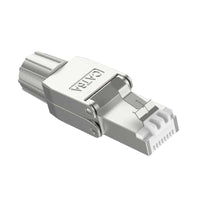
For new copper runs intended to support 10GBASE-T, evaluate Cat6A as a complete cabling system. A typical structured cabling design allows up to 90 meters for the permanent link and up to 100 meters for the channel, including patch cords. Specify the horizontal cable, Cat6A patch panel, Cat6A keystone jack, and patch cables together. Document the termination and shielding requirements in the bill of materials. For existing cabling, use its length and test results to decide which links can support the target speed and which need replacement.
Make cable testing and application checks part of acceptance
Ask the installer to deliver a permanent-link test report for each AP outlet. Match the cable ID in the report to the outlet, patch panel, and as-built drawings. Review wire map, length, insertion loss, near-end crosstalk, and return loss. For high-power PoE runs, consider adding DC resistance and resistance-unbalance measurements to the acceptance specification. After the APs go live, verify negotiated speed, allocated power, and operating mode, then repeat the business tests under load.
Close the project with an acceptance check drawn from everyday operations. Run concurrent calls in a busy office, follow the actual scanning route in a warehouse, or test whether users can associate and stay connected during a venue’s peak arrival period. Keep those results with the cabling reports and switch records so the next AP pilot can be measured against the same conditions.
Final Thoughts
Before moving to Wi-Fi 8, evaluate your current network performance, device density, application requirements, coverage stability, and expected growth. At the same time, assess whether your existing wired infrastructure, including Ethernet cabling, switches, and network ports, can support the increased demands of the new wireless standard. By identifying actual performance gaps and weighing upgrade costs against expected benefits, you can determine the right upgrade timeline and build a network infrastructure that is both reliable and ready for future growth.
Frequently Asked Questions
Is Wi-Fi 8 faster than Wi-Fi 7?
Wi-Fi 8 is expected to match Wi-Fi 7’s peak theoretical speed while delivering more consistent performance under challenging conditions. It aims to sustain higher throughput when signals are weak or interference is high, reduce latency spikes, and improve reliability when devices move between access points. Actual speeds will depend on the devices and network setup.
Will older devices work with Wi-Fi 8 access points?
Yes. IEEE has explicitly included backward compatibility and coexistence within the project scope for Wi-Fi 8 (P802.11bn). Older devices should work with Wi‑Fi 8 access points, provided the access point offers a frequency band, Wi‑Fi mode, and security setting that the device supports. For example, a 2.4 GHz-only smart device still needs a compatible 2.4 GHz network, and a Wi‑Fi 6 device without 6 GHz support cannot join a 6 GHz-only network.
Is Wi-Fi 7 worth buying now?
Wi-Fi 7 is worth buying if you are already planning to replace your router or mesh system, especially if you have multi-gig internet or many connected devices. However, if your current Wi-Fi 6 or Wi-Fi 6E network works reliably and your internet plan is below 500 Mbps or 1 Gbps, upgrading may be unnecessary.
Do I need Cat6A for Wi-Fi 7 or Wi-Fi 8?
No. Cat6A is not strictly required for Wi-Fi 7 access points. Wi-Fi 8 (IEEE 802.11bn) is also not expected to mandate a specific Ethernet cable category. However, Cat6A is a good choice when installing new structured cabling for future network upgrades.


Sei der erste Kommentar.
Hinterlasse einen Kommentar